
When you plug in the USB cable, your laptop should automatically swap over to using the Logitech camera automatically, however if it doesn't, you can change it easily.
If you have not yet started your meeting:
1. Open your Teams ''Settings''
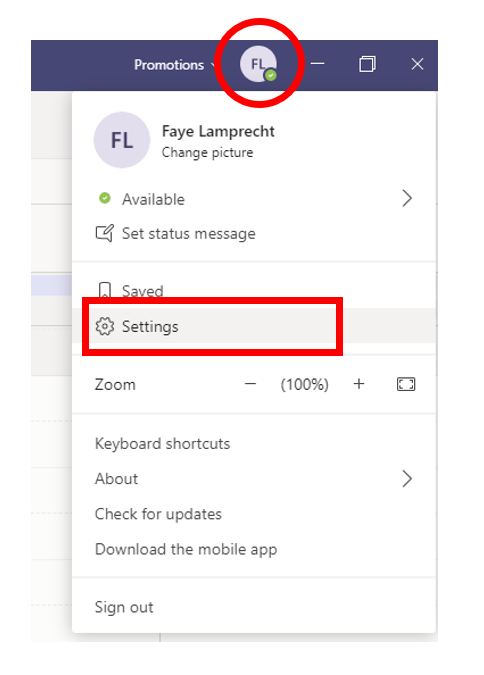
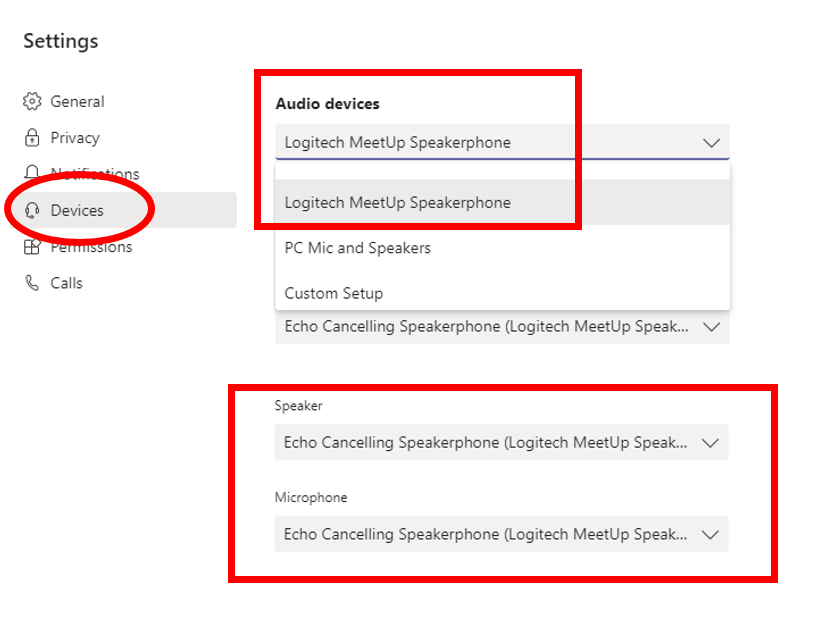
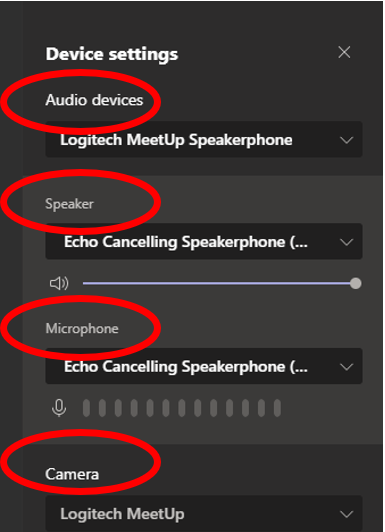
2. In the settings window, select "Devices" and change the "Audio Devices" to "Logitech Meetup Speakerphone", make sure that the Speaker and Microphone are set to "Echo Cancelling Speakerphone":
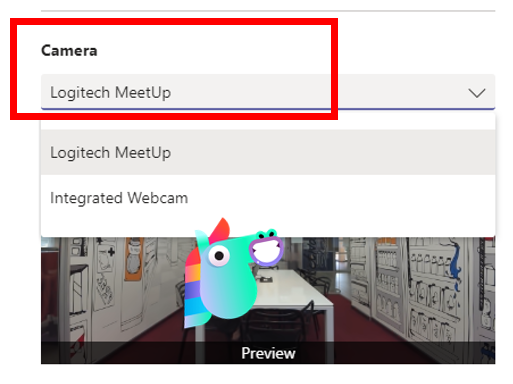
3. Then scroll down to "Camera", and change the camera to "Logitech Meetup":
If you have started your meeting:
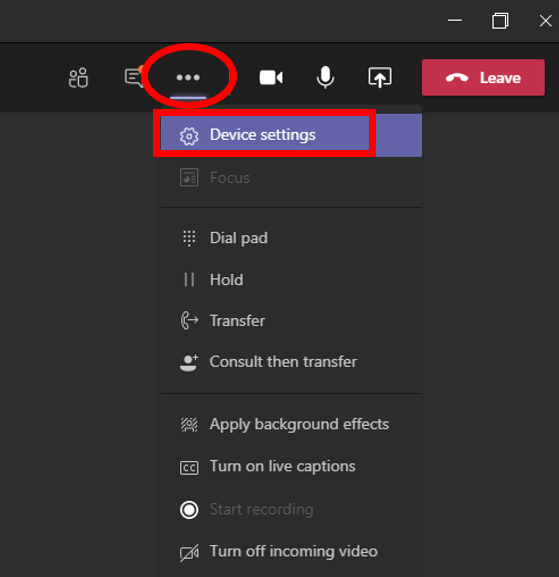
1. Click on the 3 dots in the top right-hand corner of your screen, and select ''Device settings'':
2. Start with Audio devices >> this should be set to ''Logitech MeetUp Speakerphone''
Then check your Speaker >> this should be set to ''Echo Cancelling Speakerphone (Logitec MeetUp Speaker)''
Then check your Microphone >> this should be set to ''Echo Cancelling Speakerphone (Logitec MeetUp Speaker)''
Then check your Camera >> this should be set to ''Logitech MeetUp''
Comments
0 comments
Article is closed for comments.