
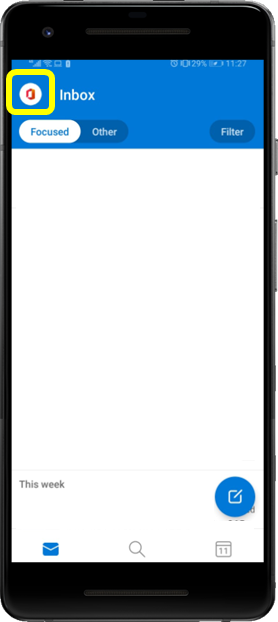
1. Select your Outlook App on your Android Device, once the App has opened click on the Outlook logo on the top left of your screen
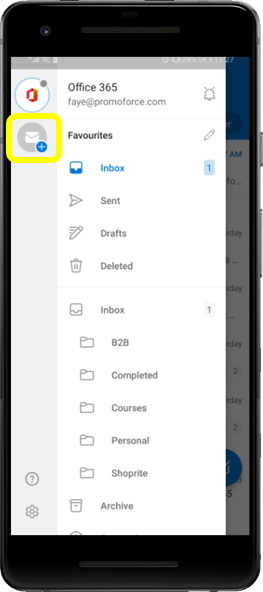
2. Select the envelope with the blue + sign
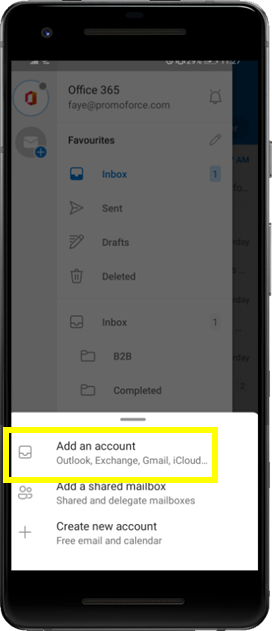
3. Select the option that says ''Add Account'' Outlook, Exchange, Mailboxes
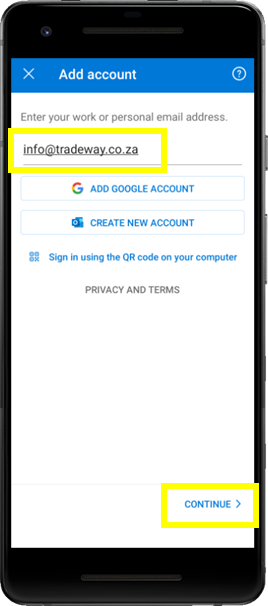
4. Enter in the required Email Address and select ''Continue''
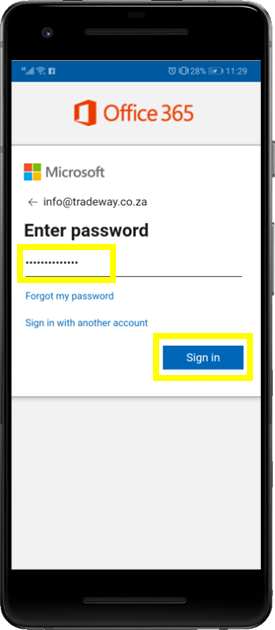
5. You will now be promoted to add in your password (remember to use the password for the Email account that you are adding in) and select ''Sign in''
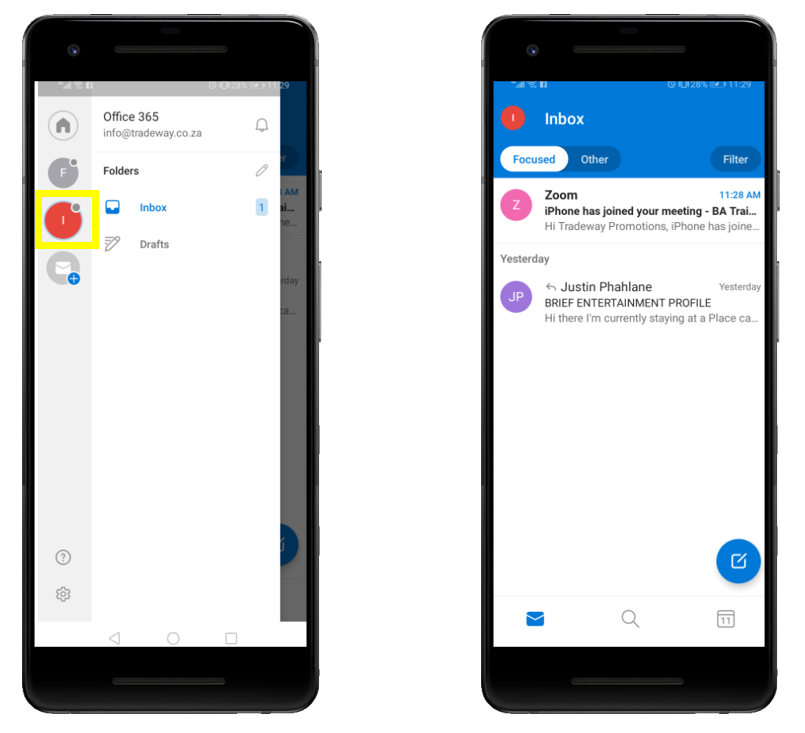
6. Your additional mailbox has bow been created
Comments
0 comments
Article is closed for comments.