
Accessing the cloud server is just a few steps on a Mac.
Pre-Requisites:
- You need Microsoft Remote Desktop v10 - You can download it from the App Store by clicking on the link. If you've just installed remote desktop, please log a ticket with IT Support to complete the setup process before you continue.
- You need Duo setup on your phone, and linked to the server before you can login. If you don't have this, please log a ticket with IT Support to set this up or you.
Connecting to the Cloud server
- Open up Microsoft Remote Desktop (Either from Launchpad or Spotlight search - CMD+Space)

- Once Remote Desktop has opened, you should see something like this:
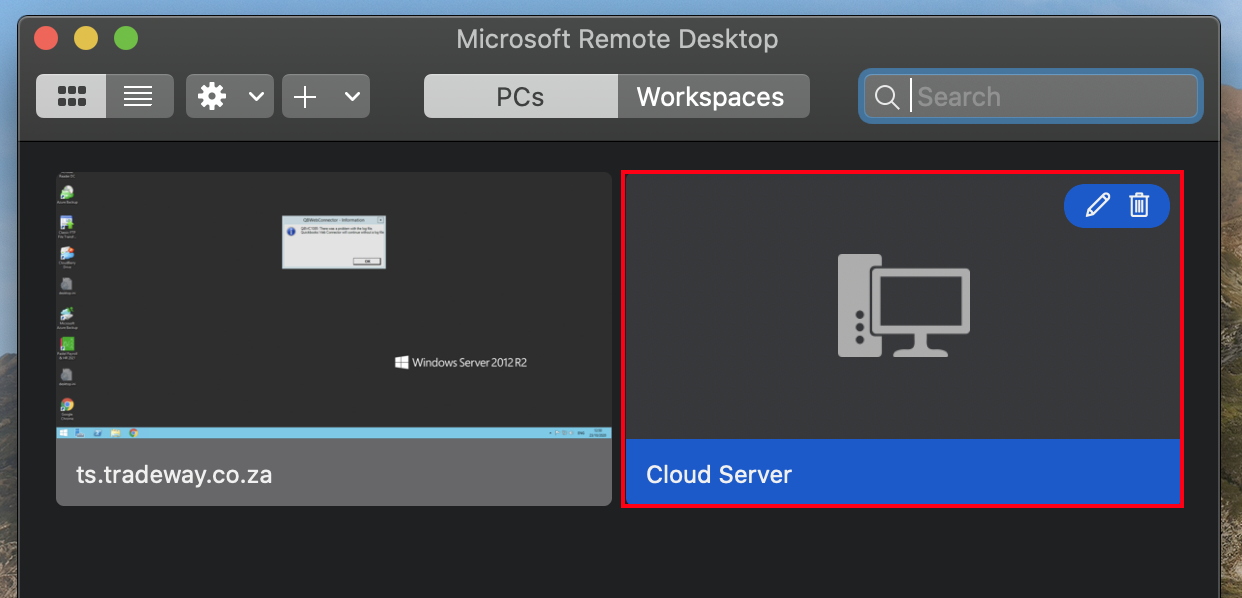
- Double click on "Cloud server" and the connection should start:
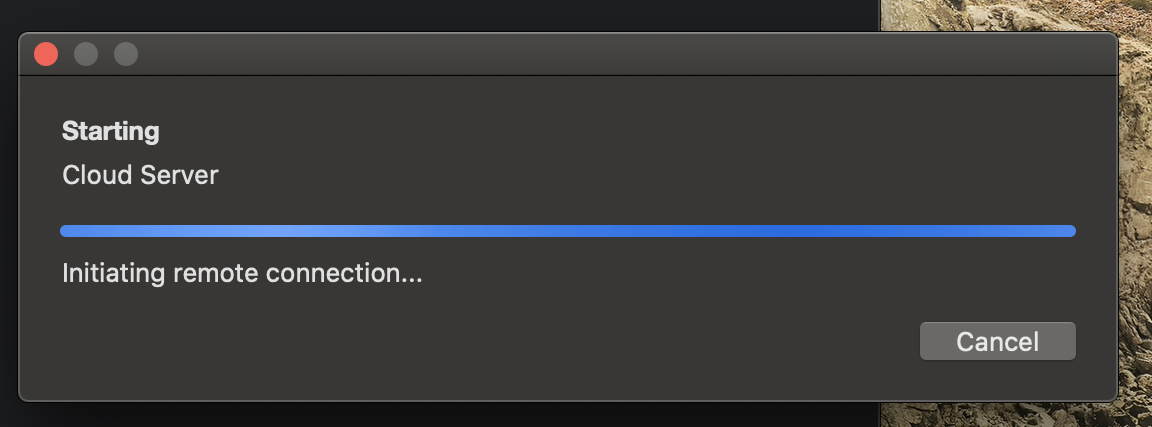
- If you're asked to confirm a "certificate", please follow the steps here.
- If you're asked to type in your username/password, please enter your details and log a ticket with IT Support to make your Mac remember your username and password in future.
- After a few moments you should see a "Duo" screen:
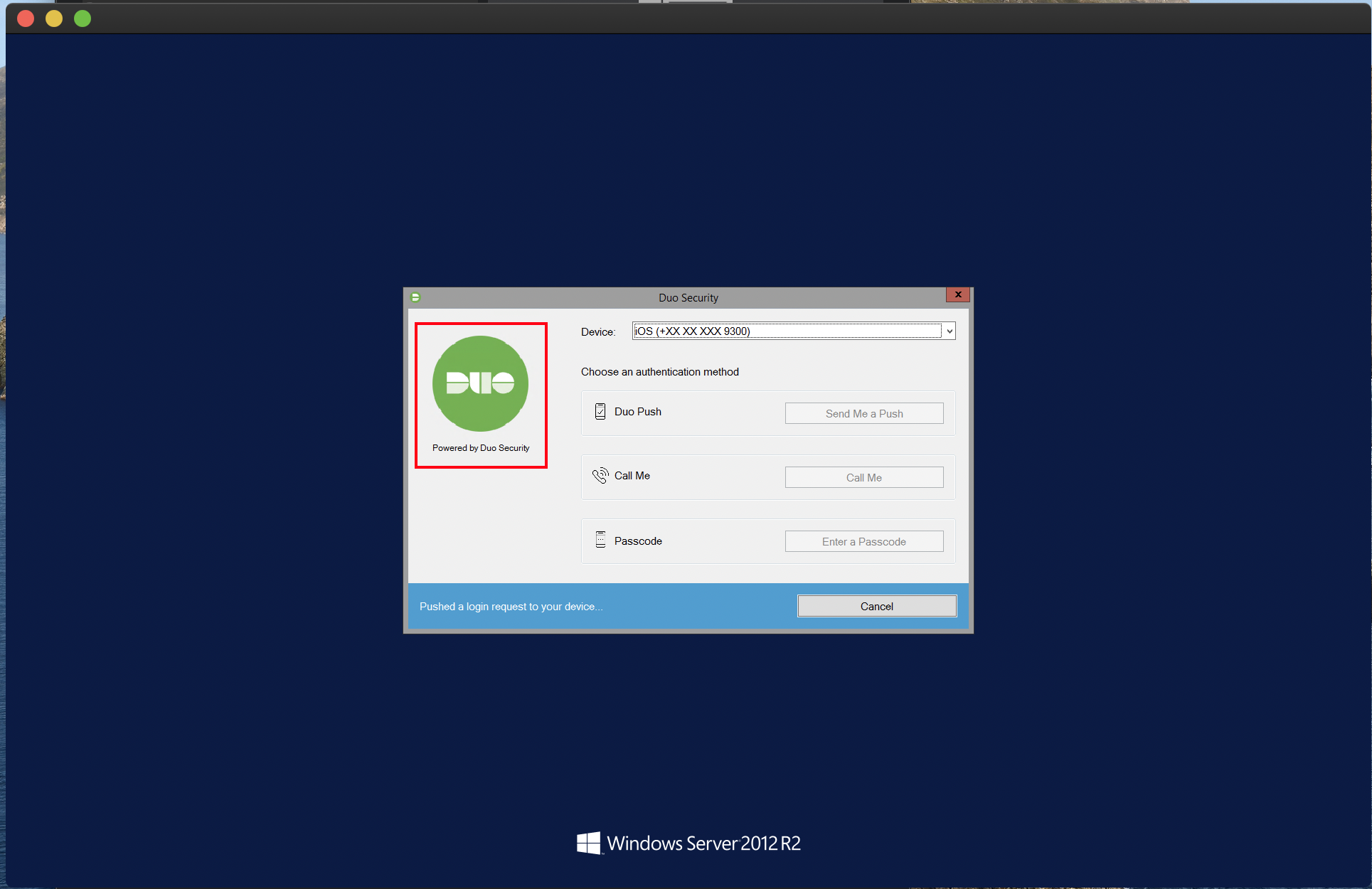
- Follow the confirmation prompts on your phone.
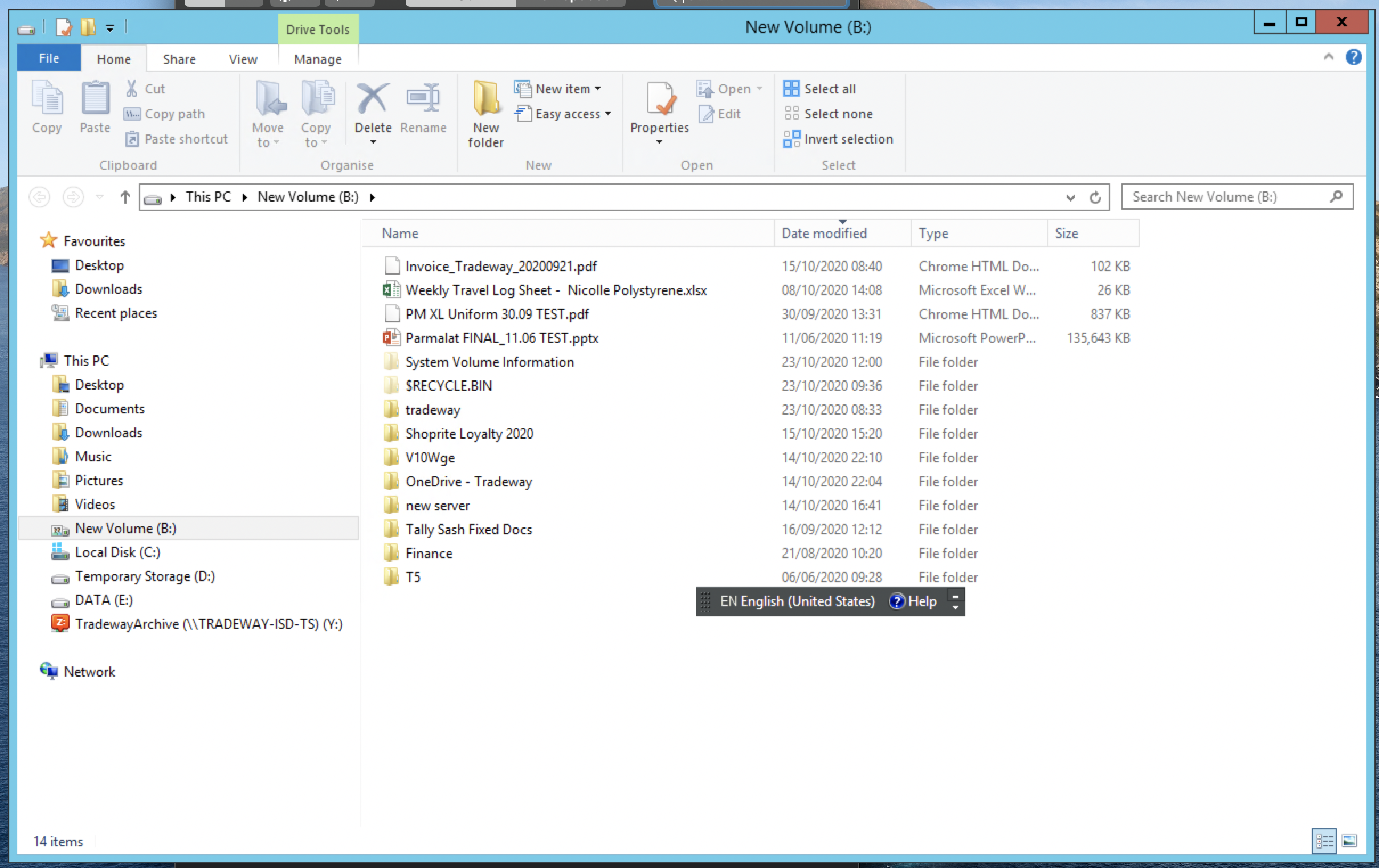
- Congratulations, you should now be connected and able to view files on the server:
Comments
0 comments
Article is closed for comments.